F1 Sensor dashboard card
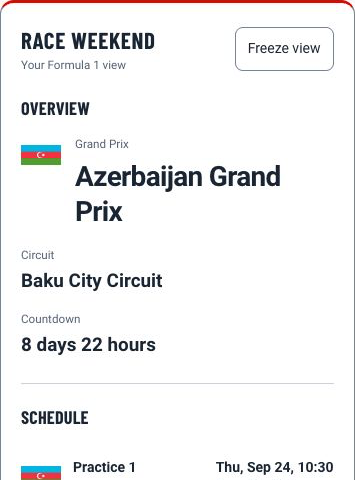
F1 Sensor includes one dashboard card: F1 Sensor. Start with a ready-made preset, then add, remove and arrange modules in the visual editor. The same card can cover a race weekend, a live session, results, championship progress, replay and detailed analysis.
Add your first card
- Install or update F1 Sensor and restart Home Assistant.
- Open a dashboard and select Edit dashboard > Add card.
- Search for F1 Sensor and select the card.
- Choose the F1 Sensor installation if Home Assistant shows more than one.
- The editor starts empty with Build your own. Add a module or select a preset, review the preview and save.
The minimal YAML configuration is:
type: custom:f1-sensor-card
With one F1 Sensor installation, the card discovers that installation and its entities automatically. Use the visual editor for normal configuration; YAML is available for copying or reviewing advanced setups.
Choose which cards to install
In the F1 Sensor integration settings, Install bundled dashboard cards controls whether the dashboard cards are registered at all. Install legacy dashboard cards additionally enables the deprecated card types and requires the main installation option to be enabled.
New installations leave legacy cards disabled. Existing installations keep them enabled until you choose otherwise. Migrate existing legacy cards before switching them off, then reload the browser. Saved legacy cards cannot render while their card types are disabled. The F1 Sensor card and your entities are unaffected by switching off legacy cards.
These resources are shared by Home Assistant. If you have several F1 Sensor installations, legacy cards remain available while any enabled installation with dashboard cards enabled requests them. Independently installed HACS resources are not removed by this option.
Choose a starting preset
| Preset | Best for | Initial modules |
|---|---|---|
| Race weekend | The next event and its conditions | Overview, schedule and two weather views |
| Weather comparison | Current conditions and the race-start forecast | Two weather views |
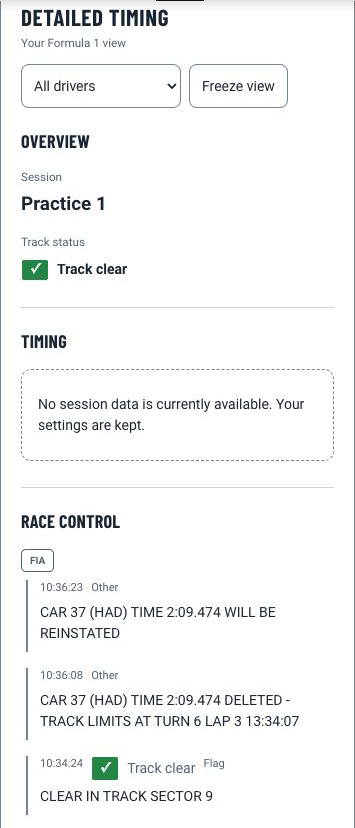
| Follow the session | Practice, qualifying, sprint or race | Overview, timing and Race Control |
| My driver | A focused driver view | Overview, driver timing with recent laps and Race Control |
| Results and championship | Completed events and season progress | Results, championship and points progression |
| Build your own | A completely custom view | No modules |
Presets are starting points, not separate card types. You can change every module after choosing a preset.
Combine the available modules
The card provides 21 modules in one visual editor.
| Purpose | Modules |
|---|---|
| Plan a weekend | Overview, Schedule, Weather |
| Follow a session | Timing, Minisectors, Race Control, Tyres, Pit stops, Incidents |
| Review results | Results, Championship, Historical archive, Season progression |
| Analyse a session | Lap history chart, Session timeline, Strategy analysis, Battles and position changes, Track map |
| Watch later | Replay, Replay telemetry |
| Read official material | FIA documents |
Modules can be reordered, duplicated, temporarily disabled or shown only during selected session phases. Each module has its own fields, filters, data-availability behavior and optional driver or team focus.
Minisectors provide source status blocks for S1, S2 and S3. You can also add the same optional blocks below the existing sector times in Timing. The source does not provide a time for each minisector. See Show minisectors.
Configure the card visually
The editor groups the main choices so you can work from content to presentation:
- Choose a preset or add modules.
- Select the fields, filters and presentation for each module.
- Choose a stacked or tabbed layout and set the shared driver, team and session focus.
- Adjust the style, density, typography and timing signals.
- Preview the result before saving.
You can export the complete card configuration or a named reusable template as JSON. Import shows a review before replacing the current editor draft.