Live Delay: sync with your TV
The live update delay lets you delay delivery of live messages and live Track Map updates so they better align with what you see on TV or streaming services.
This is especially useful for dashboards and automations, for example flashing lights on a red flag or reacting to safety car deployments, so they happen at the same moment you see them on screen.
Typical broadcast delays
Your provider, device and stream buffering determine how far the picture trails the live timing. Measure the difference on your own broadcast rather than using a fixed provider estimate.
Same moment. Same reaction.
A flag changes at the circuit. Your broadcast shows it later. Live Delay holds the Home Assistant update for the number of seconds you choose.
With a 30-second delay, the TV picture and Home Assistant update both arrive 30 seconds after the circuit event.
Illustration only. This does not measure your broadcast or change Home Assistant. Replay uses its own playback controls.
Choose manual adjustment if you already know the delay, or guided calibration to measure a shared reference point. For a recorded session, use Replay Mode instead.
This page uses the standard helper entity IDs for new installations: number.f1_live_delay, switch.f1_delay_calibration, button.f1_delay_calibration_match, and select.f1_live_delay_reference.
If you upgraded from an older release and already have different registry IDs, keep using those existing entities. The integration does not rename installed entities automatically.
Option 1 - Manual delay adjustment
At its core, Live Delay is a single value, stored in number.f1_live_delay.
- Open the System device under F1 Sensor.
- Find
number.f1_live_delayand enter your delay in seconds. - Compare a track flag or session-clock change with the broadcast.
- Adjust the value or use guided calibration if the two remain out of step.
A larger value makes live data arrive later in Home Assistant.
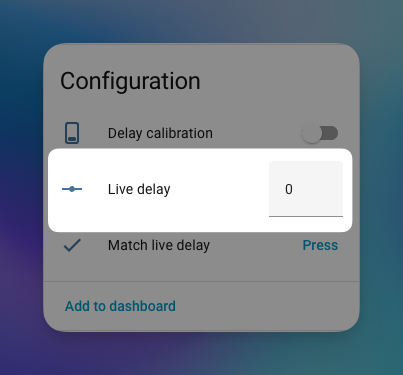
This method is simple and reliable. The guided calibration below is optional.
Use a reference visible both in the timing and in the broadcast, such as the session start or a completed lap. A broadcaster may show a delayed or edited graphic, so check the result again after calibration.
Incident alerts and notifications
Live Delay also applies to live Track Map updates and likely on-track incident updates. This means the Track Map card, f1_sensor_incident events, the On-track Incident and Possible On-track Incident binary sensors, and notification blueprints can be delayed to match what you see on TV.
Weekend Hub's live analysis follows the same Live Delay.
Use this when you want a possible stopped-car notification to arrive with the broadcast pictures instead of ahead of them.
Replay Mode does not wait for Live Delay. Replay playback and replay Track Map data are shown immediately according to the replay controls.
Option 2 - Guided calibration
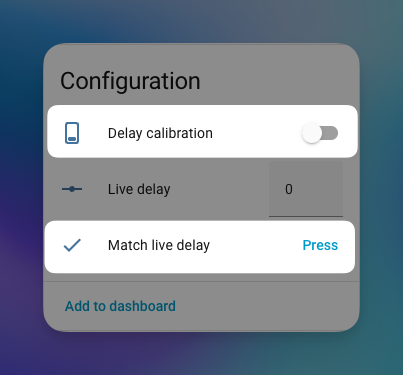
Guided calibration measures the time until you press the match button. Choose a reference first, arm calibration, then match that same moment on your TV.
It uses these helper entities:
| Entity | Purpose |
|---|---|
switch.f1_delay_calibration | Arm calibration and start the timer |
button.f1_delay_calibration_match | Press when TV catches up to commit the delay |
select.f1_live_delay_reference | Choose when the timer starts |
Entity reference
The Live Delay control reference lists calibration states, timestamps and attributes for custom dashboards. Follow the steps below for normal calibration.
Optional controls in the F1 Sensor card
You can also use these controls directly in the F1 Sensor card:
- Edit the card and open Layout and shared focus.
- Enable Show Live Delay and global spoiler controls and save the card.
- Open Viewing settings, then Calibrate with TV.
- Choose Calibration reference and select Start calibration.
- Wait for the reference to be recorded. Select Match TV and save delay when that moment reaches your TV.
The card shows the measured delay and, for lap sync, the completed lap and the next lap number to watch for on TV. Cancel calibration keeps the existing delay. Closing the panel or navigating away does not cancel the integration's measurement.
The reference and saved delay apply to the selected F1 installation and its automations. A preview or frozen card cannot change them. Stop and clear a selected replay before calibrating live data. When spoiler protection hides the reference details, matching is unavailable; cancellation remains available in a connected, unfrozen card.
For manual adjustment, enter Delay in seconds and select Apply live delay. Typing alone does not change the integration. Manual adjustment is unavailable while calibration is active.
Choose the calibration reference
Use select.f1_live_delay_reference to choose when the calibration timer starts:
- Session live - Timer starts at lights out (races) or pit exit open (practice/qualifying). This is the most precise option.
- Lap sync (race/sprint) - Timer starts when the next lap completes during the race. This lets you synchronize at any point during the race, not just at the start.
If you join a broadcast mid-race, or if your initial sync has drifted, lap sync lets you recalibrate without waiting for the next session. It works at any point during a race or sprint.
Step 1 - Arm the calibration
Turn the switch switch.f1_delay_calibration on to start calibration mode.
What happens next depends on the chosen reference:
Session live reference:
- If the session is not live yet, the integration waits
- When lights go out (race) or pit exit opens (practice/qualifying), the timer starts automatically
- If the session is already live, timing starts immediately. This does not recover the earlier start time: if you missed that reference, cancel calibration and use Lap sync (race/sprint) for a new, visible moment.
Lap sync reference (race/sprint):
- The integration waits for the next lap to complete
- When a lap completes, the timer starts and shows which lap was recorded (for example, "Lap 22 completed")
- The timer locks onto that specific lap. If you need a different lap, cancel and re-arm
- Only available during race and sprint sessions
Step 2 - Match the TV broadcast
When you see the reference point on your TV, press button.f1_delay_calibration_match. The elapsed time is measured and the result is written to number.f1_live_delay.
With session live reference: Press when you see lights out (race) or pit exit open (practice/qualifying).
With lap sync reference: Press when you see the recorded lap complete on your TV. The status message tells you exactly which lap to look for.
Lap sync records the lap that has just completed. For example, when live timing moves to lap 53, the calibration status records Lap 52 completed, because lap 53 has just started.
On most TV graphics, that same moment appears as the lap counter changing to lap 53. Treat Lap 52 completed and lap 53 started as the same reference point, then press button.f1_delay_calibration_match when your broadcast reaches that change. If your broadcast has already passed that moment, cancel and re-arm lap sync or wait for the next lap.
Practice & Qualifying The session starts when the pit exit turns green. F1 TV usually shows a countdown to this moment.
Qualifying Calibration is only needed for the start of Q1.
Race (session live) The session starts when all five lights go out and the race begins. This is not the formation lap.
Race (lap sync) The timer starts when the next lap completes. You can arm this at any point during the race. When the lap counter ticks, the timer starts and the status tells you which lap was recorded. Press the button when you see that same lap complete on TV.