Install F1 Sensor
Bring Formula 1 schedules, results and live timing into Home Assistant. Start with the stable release; you can build your first dashboard without an F1TV subscription or a live session.
How it works
- Install F1 Sensor and restart Home Assistant.
- Configure the data you want to use.
- Build your first dashboard with the included cards.
Step 1 - Install the integration
Recommended, install via HACS
Open the repository in HACS:

Option A, My Home Assistant
Use the button above, choose your Home Assistant instance and download the latest stable version of F1 Sensor. Restart Home Assistant after the download completes.
Option B, Directly in HACS
- Open HACS and search for F1 Sensor.
- Open the integration and select Download.
- Restart Home Assistant after the download completes.
HACS notifies you about future updates. See release channels if you want to test a beta.
Manual installation without HACS
- Open F1 Sensor releases.
- Download the release asset f1_sensor.zip.
- Extract it so the integration files are in
config/custom_components/f1_sensor/. - Restart Home Assistant.
Use the release asset rather than a source-code archive; it contains the files needed by Home Assistant.
Step 2 - Add the integration to Home Assistant
After restarting, open Settings → Devices & services → Add integration and search for F1 Sensor. The configuration guide explains the choices in the setup form.

Step 3 - Select which sensors to create
For a first dashboard, include Next race and weather. Enable live data when you want timing, flags or live automations. You can change this selection later through Settings → Devices & services → F1 Sensor → Reconfigure.
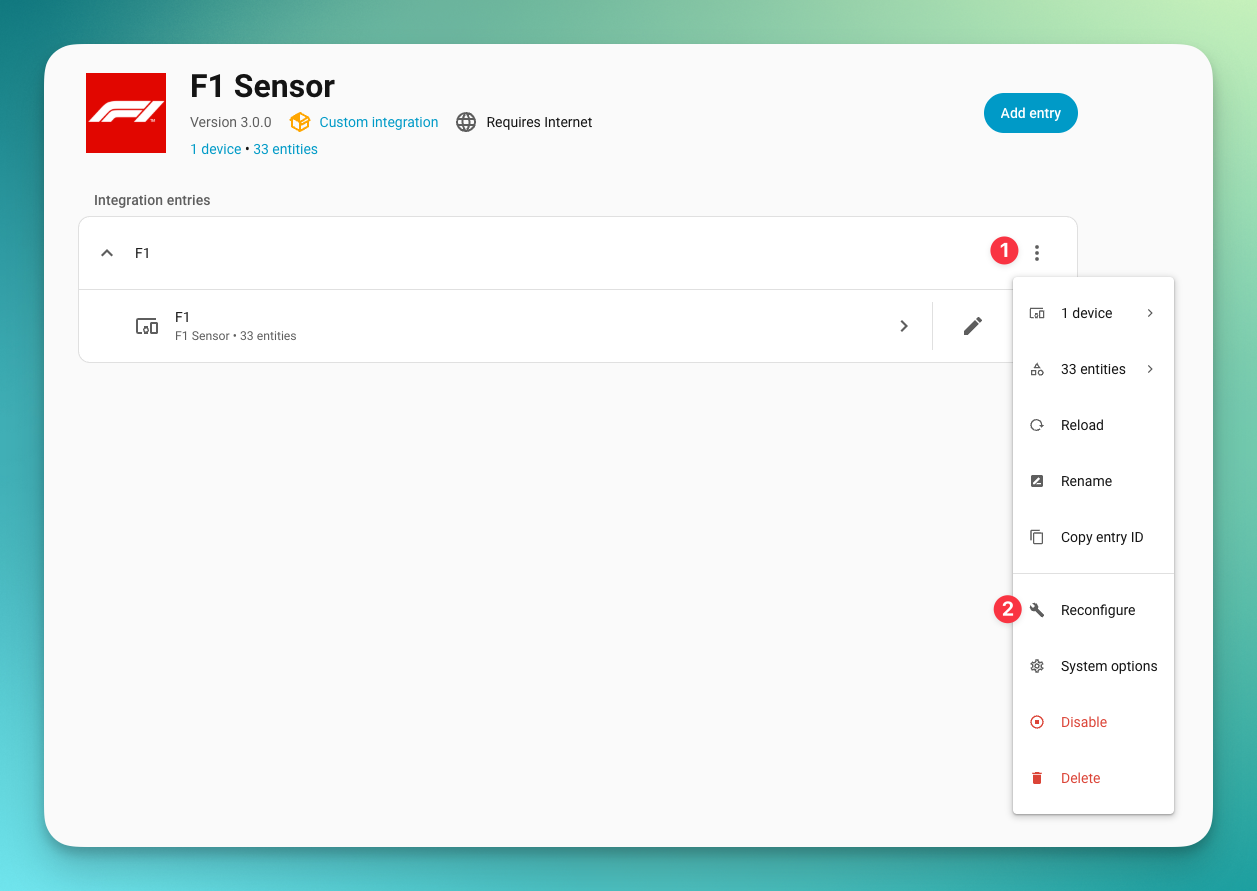
Use Reconfigure to change enabled features after installation.
F1TV pairing is optional. See what works with each data mode before adding access for a particular feature.
Done
Open the integration and check that its devices and selected entities appear. Schedule data should be useful even when no session is running; live entities can wait until the next session.
The F1 Sensor dashboard card is included and registered automatically. Continue with Your first dashboard.
If F1 Sensor is missing from Add integration, confirm the download completed, restart Home Assistant and refresh the browser. For further checks, open troubleshooting.