FIA Documents
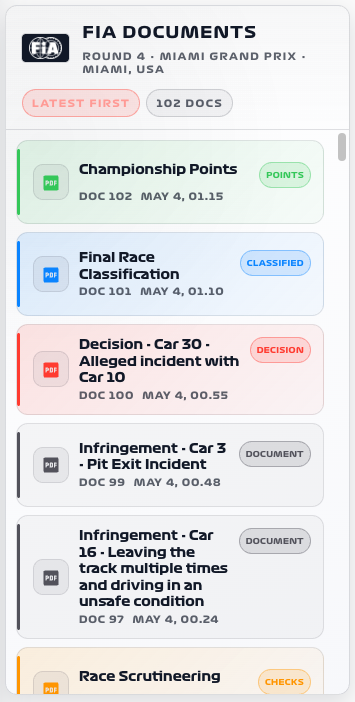
Open official FIA documents for the current race weekend from your dashboard. Show the latest publication or browse the full list with document numbers, categories and publication times.
Availability
Published documents. Enable FIA Documents. Last Race Results can add weekend context. Documents depend on publication by the FIA, not on a live timing connection or F1TV Auth.
Add the card
- Open your dashboard, select Edit dashboard, then Add card.
- Search for F1 and select the FIA Documents card.
- Select FIA Documents under Data Sources. Keep List and Newest first for a document library, or choose Latest for a compact publication card.
- Select Save.
If the card is missing from the picker, follow Card installation. With more than one F1 Sensor entry, use the sources from the same entry; see Entity selection.
Minimal YAML
Use this in a manual dashboard card. Replace any entity ID with the one in your installation if it differs.
type: custom:f1-fia-documents-card
entity: sensor.f1_fia_documents
theme_mode: auto
Use the card
Select a document to open its PDF. By default, the PDF opens in a new browser tab. Use document numbers and publication times to distinguish revised or related decisions.
Configuration
Data sources
The defaults below are the card’s fallback values. Automatic discovery connects standard sources to the selected integration entry, including renamed entity IDs. See Entity selection.
| Option | Default | Description |
|---|---|---|
entity | sensor.f1_officials_f1_fia_documents | Primary data source for this card. Select the matching entity from your F1 Sensor entry. Automatic discovery selects the current registered ID; this is the legacy fallback. |
last_race_entity | sensor.f1_race_f1_last_race_results | Last Race Results for matching weekend context. Select the entity from your F1 Sensor entry. Automatic discovery selects the current registered ID; this is the legacy fallback. |
no_spoiler_entity | switch.f1_no_spoiler_mode | Entity whose on state enables spoiler protection. See No Spoiler Mode. |
Display and behavior
| Option | Default | Description |
|---|---|---|
theme_mode | dark | dark, light or auto; auto follows Home Assistant. See Appearance. |
display_mode | list | Use list or latest |
sort_order | newest | newest or oldest publication first. |
show_header | true | Show the card header |
show_fia_logo | true | Show FIA branding |
show_race_context | true | Show race/weekend context |
show_count | true | Show document count |
show_pdf_icon | true | Show PDF icon |
show_document_number | true | Show document number |
show_document_type | true | Show document type styling |
show_document_coloring | true | Use document category coloring |
show_published | true | Show published time |
show_latest_badge | true | Mark the latest document |
visible_rows | 8 | Visible rows before scrolling, from 1 to 30. |
list_max_height | 0 | Fixed list height: 0 sizes from visible rows; positive values are clamped to 180–2000 pixels. |
open_in_new_tab | true | Open PDFs in a new browser tab |
title | FIA Documents | Card title. |
font_style | wide | wide, balanced or system. See Typography. |
All bundled cards also support f1_entry_id and card actions. Home Assistant layout settings remain available in the dashboard editor.
When data is missing
An empty list can mean that no documents have been published for the current weekend. If a document is listed but its PDF cannot be opened, check the source link; publication changes are separate from the card display.
For an Entity not found message, check the selection in Data Sources and confirm that the entity is enabled in F1 Sensor. For a missing card type or an old interface after an update, use the card loading checks.