Lap Position Progression
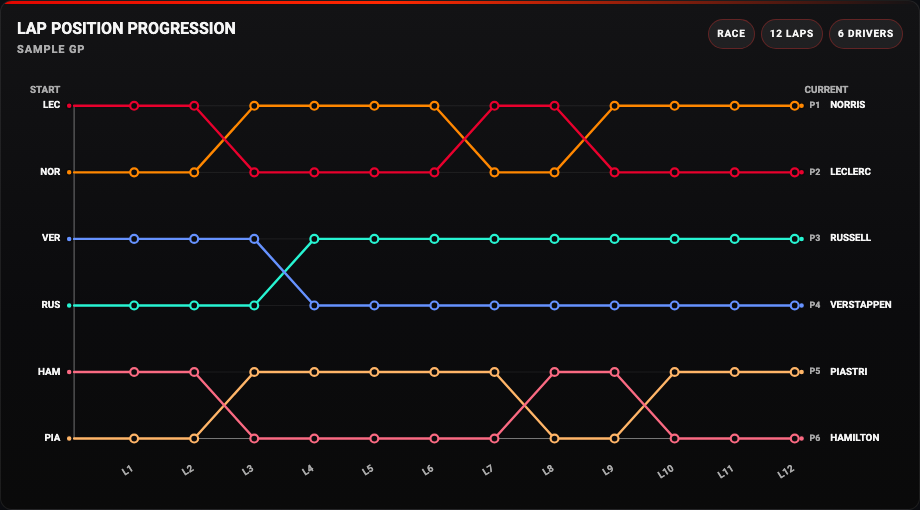
Trace how each driver moved through the field during a completed main race. The chart combines lap positions with the official finishing order, including later classification changes.
Availability
Completed main races. Enable Lap Position Progression. Driver List supplies names and team detail; No Spoiler Mode protects results. The chart loads one selected completed main race at a time. F1TV Auth is not required.
Add the card
- Open your dashboard, select Edit dashboard, then Add card.
- Search for F1 and select the Lap Position Progression card.
- Select Lap Position Progression under Data Sources. Keep the session selector enabled. On a smaller dashboard, use a top-driver limit to reduce overlapping lines.
- Select Save.
If the card is missing from the picker, follow Card installation. With more than one F1 Sensor entry, use the sources from the same entry; see Entity selection.
Minimal YAML
Use this in a manual dashboard card. Replace any entity ID with the one in your installation if it differs.
type: custom:f1-lap-position-progression-card
entity: sensor.f1_lap_position_progression
theme_mode: auto
Use the card
P1 sits at the top and lap number runs along the horizontal axis. Left labels show starting order; right labels show official finishing order. Lines end at the classified result, so a post-race adjustment can change the final position.
Select a driver label on either side to hide or show that line. Hover over or focus a point to inspect the driver, lap and position. Drivers with classification metadata but no lap timing rows remain listed without a line.
Configuration
Data sources
The defaults below are the card’s fallback values. Automatic discovery connects standard sources to the selected integration entry, including renamed entity IDs. See Entity selection.
| Option | Default | Description |
|---|---|---|
entity | sensor.f1_lap_position_progression | Race and Sprint session metadata; charts are available for completed main races. |
drivers_entity | sensor.f1_driver_list | Driver List for names, teams and driver detail. Select the entity from your F1 Sensor entry. |
no_spoiler_entity | switch.f1_no_spoiler_mode | Entity whose on state enables spoiler protection. See No Spoiler Mode. |
Display and behavior
| Option | Default | Description |
|---|---|---|
theme_mode | auto | dark, light or auto; auto follows Home Assistant. See Appearance. |
title | Lap Position Progression | Card title |
show_header | true | Show the card header |
show_session_selector | true | Allow switching between race and sprint entries |
show_full_name | false | Show full driver names instead of compact labels |
team_logo_style | color | color or white for team logos. |
show_points | true | Show point markers on the chart |
show_round_labels | true | Show lap labels on the x-axis |
top_limit | 0 | Limit visible entries by final position. 0 shows all drivers |
chart_height | 420 | Chart height in pixels, from 300 to 720. |
font_style | wide | wide, balanced or system. See Typography. |
All bundled cards also support f1_entry_id and card actions. Home Assistant layout settings remain available in the dashboard editor.
When data is missing
Sprint sessions can appear in the selector, but the source provides Sprint classifications rather than lap-by-lap positions. Those entries show an unsupported state. A completed race may still be waiting for lap data. No Spoiler Mode deliberately prevents newly fetched position data from being revealed.
For an Entity not found message, check the selection in Data Sources and confirm that the entity is enabled in F1 Sensor. For a missing card type or an old interface after an update, use the card loading checks.