Next Race
See when the next Grand Prix starts, its weekend schedule and the circuit location at a glance. The countdown, circuit image and weather make this a useful first card even between race weekends.
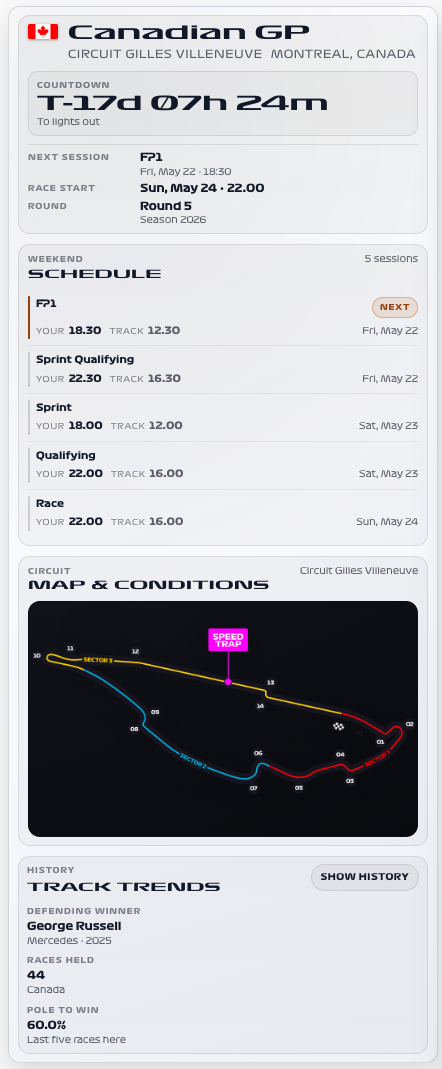
Availability
No live session needed. Enable Next Race. Weather adds the forecast; Track Weather, Current Session and Session Status let the card prefer live circuit conditions during an active session. The schedule and countdown do not require F1TV Auth or a live session.
Add the card
- Open your dashboard, select Edit dashboard, then Add card.
- Search for F1 and select the Next Race card.
- Select Next Race under Data Sources. Keep schedule and countdown enabled for a first dashboard. Enable weather and select the weather sources if you want a forecast alongside the schedule.
- Select Save.
If the card is missing from the picker, follow Card installation. With more than one F1 Sensor entry, use the sources from the same entry; see Entity selection.
Minimal YAML
Use this in a manual dashboard card. Replace any entity ID with the one in your installation if it differs.
type: custom:f1-next-race-card
next_race_entity: sensor.f1_next_race
theme_mode: auto
Use the card
The schedule shows the sessions for the next race weekend. Circuit time is separate from the time display used for your own schedule. Live weather is preferred only when it is usable; the card can fall back to the next-race forecast.
Configuration
Data sources
The defaults below are the card’s fallback values. Automatic discovery connects standard sources to the selected integration entry, including renamed entity IDs. See Entity selection.
| Option | Default | Description |
|---|---|---|
next_race_entity | sensor.f1_next_race | Next Race for the next weekend and session schedule. Select the entity from your F1 Sensor entry. |
weather_entity | sensor.f1_weather | Weather forecast and current circuit conditions. Select the entity from your F1 Sensor entry. |
track_weather_entity | sensor.f1_track_weather | Live Track Weather measurements. Select the entity from your F1 Sensor entry. |
current_session_entity | sensor.f1_current_session | Current Session for choosing live weather. Select the entity from your F1 Sensor entry. |
session_status_entity | sensor.f1_session_status | Session Status for active/live/replay context. Select the entity from your F1 Sensor entry. |
Display and behavior
| Option | Default | Description |
|---|---|---|
theme_mode | dark | dark, light or auto; auto follows Home Assistant. See Appearance. |
show_header | true | Show the card header |
show_countdown | true | Show countdown to the race |
show_overview | true | Show the main race overview |
show_schedule | true | Show session schedule |
show_track_time | true | Show local circuit time |
show_map | true | Show circuit image when available |
show_weather | true | Show weather information |
show_history | true | Show race history when available |
prefer_live_weather | true | Prefer sensor.f1_track_weather during live sessions |
font_style | wide | wide, balanced or system. See Typography. |
All bundled cards also support f1_entry_id and card actions. Home Assistant layout settings remain available in the dashboard editor.
When data is missing
A missing circuit image or race history does not stop the countdown and schedule. If no race appears, inspect Next Race in Developer Tools > States and confirm that upcoming schedule data is available. A finished season may not yet have a published next-race schedule.
For an Entity not found message, check the selection in Data Sources and confirm that the entity is enabled in F1 Sensor. For a missing card type or an old interface after an update, use the card loading checks.