Race Weather
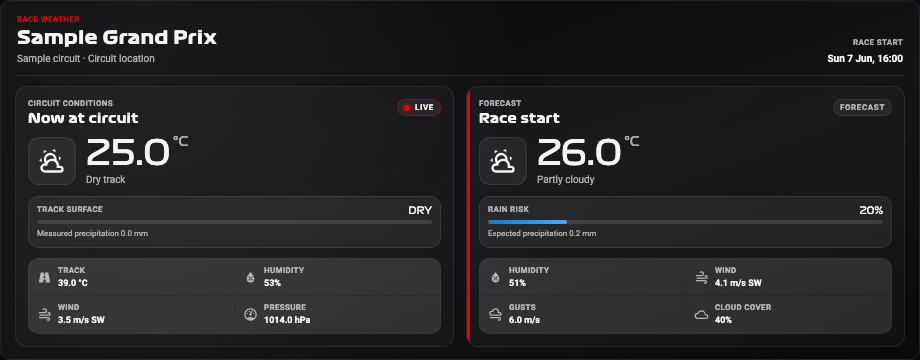
Compare current circuit conditions with the forecast for race start. During a session, live track measurements can replace the current forecast while the race-start forecast stays visible.
Availability
Forecast / Public live. Enable Weather. Track Weather adds live measurements; Next Race supplies race and circuit context, and Session Status determines when to prefer live conditions. Forecasts and public live track weather do not require F1TV Auth.
Add the card
- Open your dashboard, select Edit dashboard, then Add card.
- Search for F1 and select the Race Weather card.
- Select Weather under Data Sources and leave Prefer live weather enabled. Add Track Weather, Next Race and Session Status to show live conditions with race context.
- Select Save.
If the card is missing from the picker, follow Card installation. With more than one F1 Sensor entry, use the sources from the same entry; see Entity selection.
Minimal YAML
Use this in a manual dashboard card. Replace any entity ID with the one in your installation if it differs.
type: custom:f1-weather-card
weather_entity: sensor.f1_weather
theme_mode: auto
Use the card
The card can show air and track temperature, rain, humidity, pressure and wind when the source supplies them. Live conditions are preferred during pre, live, suspended and break session states. Home Assistant unit preferences determine temperature and wind presentation.
Configuration
Data sources
The defaults below are the card’s fallback values. Automatic discovery connects standard sources to the selected integration entry, including renamed entity IDs. See Entity selection.
| Option | Default | Description |
|---|---|---|
weather_entity | sensor.f1_weather | Weather forecast and current circuit conditions. Select the entity from your F1 Sensor entry. |
track_weather_entity | sensor.f1_track_weather | Live Track Weather measurements. Select the entity from your F1 Sensor entry. |
next_race_entity | sensor.f1_next_race | Next Race for the next weekend and session schedule. Select the entity from your F1 Sensor entry. |
session_status_entity | sensor.f1_session_status | Session Status for active/live/replay context. Select the entity from your F1 Sensor entry. |
Display and behavior
| Option | Default | Description |
|---|---|---|
prefer_live_weather | true | Prefer live track conditions during pre, live, suspended, and break session states |
show_header | true | Show the race, circuit location, and race-start time |
theme_mode | dark | dark, light or auto; auto follows Home Assistant. See Appearance. |
font_style | wide | wide, balanced or system. See Typography. |
All bundled cards also support f1_entry_id and card actions. Home Assistant layout settings remain available in the dashboard editor.
When data is missing
Track temperature and other live measurements may be absent between sessions. The race-start forecast may also be missing when it is not yet available from the weather source. Check the Weather entity before treating an incomplete forecast as a card error.
For an Entity not found message, check the selection in Data Sources and confirm that the entity is enabled in F1 Sensor. For a missing card type or an old interface after an update, use the card loading checks.