Replay Control
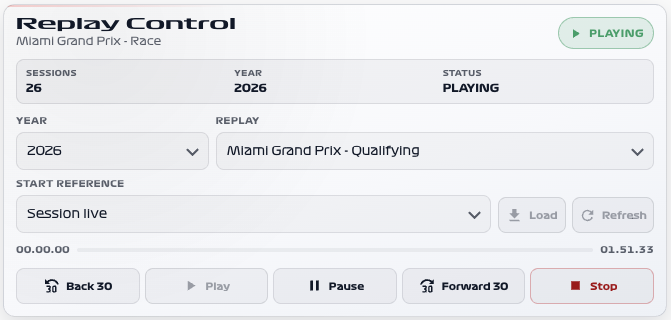
Load and control an archived session from your dashboard. Season and session selectors, playback buttons and a seek bar keep Replay Mode in one place.
Availability
Replay. Enable Replay Mode in the integration. The card uses Replay Status, replay selectors and buttons, and the Replay Player media player. A seek bar needs a player that reports seek support. It does not control your television or video stream directly.
Add the card
- Open your dashboard, select Edit dashboard, then Add card.
- Search for F1 and select the Replay Control card.
- Select Replay Status under Data Sources and confirm the replay selectors, buttons and player. Use Full layout for setup and Compact once you know which controls you need.
- Select Save.
If the card is missing from the picker, follow Card installation. With more than one F1 Sensor entry, use the sources from the same entry; see Entity selection.
Minimal YAML
Use this in a manual dashboard card. Replace any entity ID with the one in your installation if it differs.
type: custom:f1-replay-control-card
status_entity: sensor.f1_replay_status
theme_mode: auto
Use the card
Choose a season and session, select a start reference if available, then load the replay. Use play, pause or stop as needed. The 30-second controls and seek bar help you line the data up with your video.
Dragging the seek bar previews a position. Releasing it sends a single seek request; it does not seek continuously while you drag. See Replay Mode for the complete viewing workflow.
Configuration
Data sources
The defaults below are the card’s fallback values. Automatic discovery connects standard sources to the selected integration entry, including renamed entity IDs. See Entity selection.
| Option | Default | Description |
|---|---|---|
status_entity | sensor.f1_replay_status | Replay Status. Select the entity from your F1 Sensor entry. |
year_entity | select.f1_replay_year | Replay Year selector. Select the entity from your F1 Sensor entry. |
session_entity | select.f1_replay_session | Replay Session selector. |
start_reference_entity | select.f1_replay_start_reference | Replay Start Reference selector. Select the entity from your F1 Sensor entry. |
load_button_entity | button.f1_replay_load | Replay Load button. Select the entity from your F1 Sensor entry. |
play_button_entity | button.f1_replay_play | Replay Play button. Select the entity from your F1 Sensor entry. |
pause_button_entity | button.f1_replay_pause | Replay Pause button. Select the entity from your F1 Sensor entry. |
back_button_entity | button.f1_replay_back_30 | Replay Back 30 seconds button. Select the entity from your F1 Sensor entry. |
forward_button_entity | button.f1_replay_forward_30 | Replay Forward 30 seconds button. Select the entity from your F1 Sensor entry. |
stop_button_entity | button.f1_replay_stop | Replay Stop button. Select the entity from your F1 Sensor entry. |
refresh_button_entity | button.f1_replay_refresh | Replay Refresh button. Select the entity from your F1 Sensor entry. |
player_entity | media_player.f1_replay_player | Replay Player media player, including seek support. Select the entity from your F1 Sensor entry. |
Display and behavior
| Option | Default | Description |
|---|---|---|
theme_mode | dark | dark, light or auto; auto follows Home Assistant. See Appearance. |
title | Replay Control | Card title |
display_mode | full | Use full or compact layout |
show_title | true | Show card title |
show_status_details | true | Show replay status metadata |
show_secondary_selects | true | Show secondary selectors |
show_start_reference | true | Show start reference selector |
show_seek_controls | true | Show back/forward 30-second controls |
show_refresh | true | Show refresh control |
show_progress | true | Show playback progress and the seek playbar when supported |
show_button_labels | true | Show text labels on playback buttons |
font_style | wide | wide, balanced or system. See Typography. |
All bundled cards also support f1_entry_id and card actions. Home Assistant layout settings remain available in the dashboard editor.
When data is missing
Load a session before expecting playback progress. The seek bar stays absent if the player does not support seek or has no usable duration. A missing selector or button usually means that the replay feature or its entity is disabled; verify that before re-adding the card.
For an Entity not found message, check the selection in Data Sources and confirm that the entity is enabled in F1 Sensor. For a missing card type or an old interface after an update, use the card loading checks.