Results
Review Race and Sprint classifications, then open Archive to browse historical results. The table includes grid changes, points and finish status, with a dedicated qualifying layout for archived sessions.
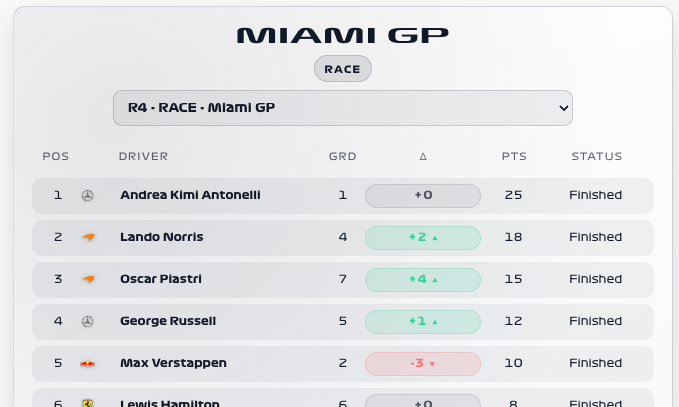
Availability
Published results. Enable Last Race Results. Season Results and Sprint Results add current-season session choices; Driver List adds driver images. Historical Archive requests use the selected F1 Sensor entry and start only when you open Archive. No live timing connection or F1TV Auth is required.
Add the card
- Open your dashboard, select Edit dashboard, then Add card.
- Search for F1 and select the Results card.
- Select Last Race Results under Data Sources and keep the session selector visible. Leave Archive enabled if you want historical seasons. With multiple integration entries, set the archive entry explicitly.
- Select Save.
If the card is missing from the picker, follow Card installation. With more than one F1 Sensor entry, use the sources from the same entry; see Entity selection.
Minimal YAML
Use this in a manual dashboard card. Replace any entity ID with the one in your installation if it differs.
type: custom:f1-last-race-results-card
entity: sensor.f1_last_race_results
theme_mode: auto
Use the card
Select Archive, then a season, Grand Prix and session to load historical classifications. Race and Sprint tables show race fields; qualifying tables show position, driver and Q1–Q3 times. A published result can change after penalties or corrections.
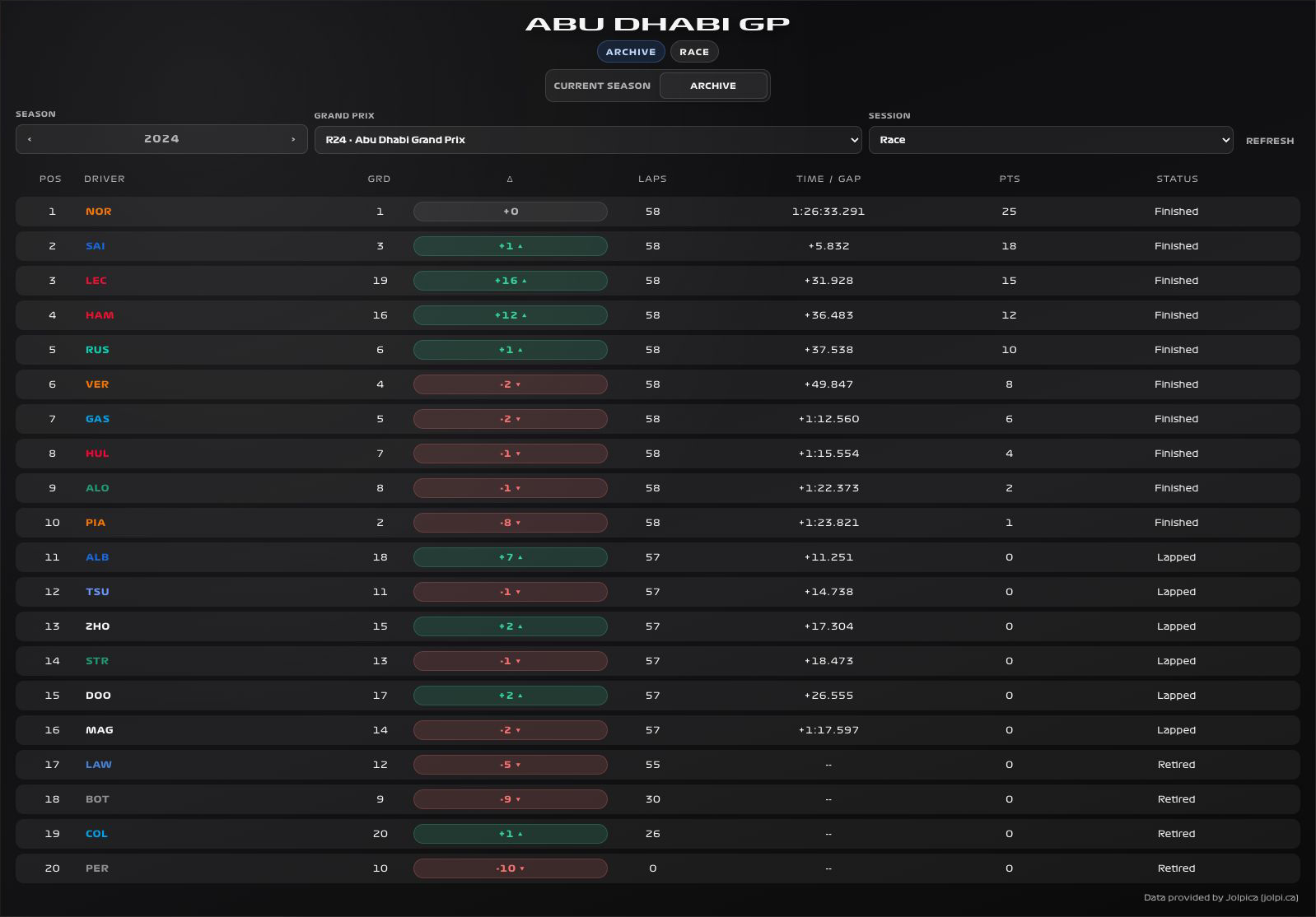
Follow Browse historical results for a complete Archive workflow and a YAML example that opens a past season.
Existing custom:f1-session-archive-card configurations still open Results in Archive mode. The separate Session Archive card is no longer offered in the picker. You can use default_scope: archive with the current card type to open the archive first.
Configuration
Data sources
The defaults below are the card’s fallback values. Automatic discovery connects standard sources to the selected integration entry, including renamed entity IDs. See Entity selection.
| Option | Default | Description |
|---|---|---|
history_entry_id | auto | Integration entry for Archive requests. Use auto for one entry. |
entity | sensor.f1_last_race_results | Primary data source for this card. Select the matching entity from your F1 Sensor entry. |
season_results_entity | sensor.f1_season_results | Season Results for current-season classifications. Select the entity from your F1 Sensor entry. |
sprint_results_entity | sensor.f1_sprint_results | Sprint Results for Sprint classifications. Select the entity from your F1 Sensor entry. |
drivers_entity | sensor.f1_driver_list | Driver List for names, teams and driver detail. Select the entity from your F1 Sensor entry. |
no_spoiler_entity | switch.f1_no_spoiler_mode | Entity whose on state enables spoiler protection. See No Spoiler Mode. |
entry_id | Unset | Legacy alias for history_entry_id. Prefer history_entry_id for Archive requests. |
Display and behavior
| Option | Default | Description |
|---|---|---|
theme_mode | dark | dark, light or auto; auto follows Home Assistant. See Appearance. |
show_header | true | Show the card header |
show_session_selector | true | Allow switching between race and sprint classifications |
show_session_type_badge | true | Show session type badge |
show_table_header | true | Show column labels |
show_position | true | Show final position |
show_grid | true | Show starting grid position |
show_tla | true | Show driver TLA |
show_full_name | false | Show full driver names |
show_team_logo | true | Show team logo |
driver_image_type | team_logo | team_logo or headshot. Chooses the image displayed beside the driver. |
team_logo_style | color | color or white for team logos. |
show_delta | true | Show movement from grid to finish |
show_laps | true | Show completed laps for race and Sprint classifications |
show_time_gap | true | Show the total time or gap supplied by Jolpica |
show_points | true | Show awarded points |
show_status | true | Show finish status |
show_archive | true | Allow switching to the on-demand results archive |
history_year | Current year | Initial Archive year, between 1950 and the current year. |
top_limit | 0 | Limit rows to top N. 0 shows all |
default_scope | current | current or archive. Chooses which results view opens first. |
title | Session-dependent | Card title. |
spoiler_placeholder | HIDE | Text used for masked values, converted to uppercase. The spoiler overlay can also cover the card. |
year | Unset | Legacy alias for history_year. Prefer history_year for new cards. |
font_style | wide | wide, balanced or system. See Typography. |
All bundled cards also support f1_entry_id and card actions. Home Assistant layout settings remain available in the dashboard editor.
When data is missing
Wait for the results source to publish a classification after a session finishes. An unavailable historical session may have no result in the selected season. A No Spoiler overlay is intentional: turn off the configured protection only when you are ready to see results.
For an Entity not found message, check the selection in Data Sources and confirm that the entity is enabled in F1 Sensor. For a missing card type or an old interface after an update, use the card loading checks.