Season Calendar
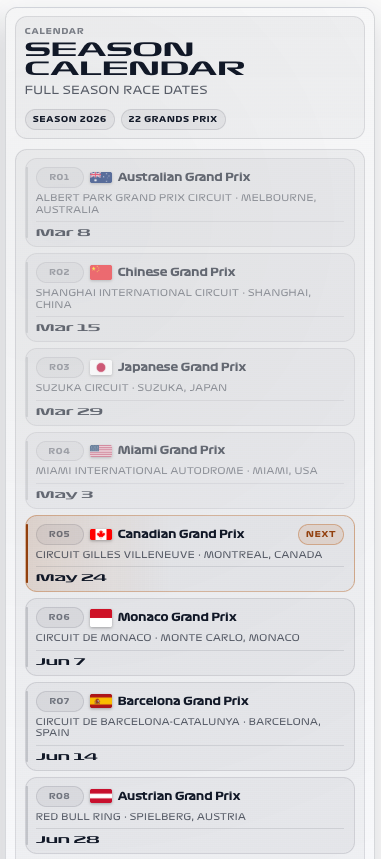
Plan the season with a compact list of race weekends. Highlight the next race and dim or hide completed rounds to keep the list useful as the season progresses.
Availability
No live session needed. Enable Current Season. This card uses the season schedule sensor, sensor.f1_current_season, rather than the separate Home Assistant calendar entity. No live session or F1TV Auth is needed.
Add the card
- Open your dashboard, select Edit dashboard, then Add card.
- Search for F1 and select the Season Calendar card.
- Select Current Season under Data Sources. Keep next-race highlighting enabled. For a short upcoming-races view, enable Hide past races; leave it off for a complete season overview.
- Select Save.
If the card is missing from the picker, follow Card installation. With more than one F1 Sensor entry, use the sources from the same entry; see Entity selection.
Minimal YAML
Use this in a manual dashboard card. Replace any entity ID with the one in your installation if it differs.
type: custom:f1-season-calendar-card
current_season_entity: sensor.f1_current_season
theme_mode: auto
Use the card
Show circuit names or locations when you have room for more detail. On a narrow dashboard, the default race and date view keeps the calendar easier to scan.
Configuration
Data sources
The defaults below are the card’s fallback values. Automatic discovery connects standard sources to the selected integration entry, including renamed entity IDs. See Entity selection.
| Option | Default | Description |
|---|---|---|
current_season_entity | sensor.f1_current_season | Current Season schedule. Select the entity from your F1 Sensor entry. |
Display and behavior
| Option | Default | Description |
|---|---|---|
theme_mode | dark | dark, light or auto; auto follows Home Assistant. See Appearance. |
show_header | true | Show the card header |
show_round | true | Show round number |
show_country_flag | true | Show country flag |
show_circuit_name | false | Show circuit name |
show_location | false | Show locality and country |
highlight_next_race | true | Highlight the next race |
dim_past_races | true | Visually dim completed races |
hide_past_races | false | Hide completed races |
font_style | wide | wide, balanced or system. See Typography. |
All bundled cards also support f1_entry_id and card actions. Home Assistant layout settings remain available in the dashboard editor.
When data is missing
If the list is unexpectedly empty, turn off Hide past races and inspect the Current Season entity. There may be no remaining races in the loaded schedule. If the entity itself has no races, wait for a schedule update or check the integration logs.
For an Entity not found message, check the selection in Data Sources and confirm that the entity is enabled in F1 Sensor. For a missing card type or an old interface after an update, use the card loading checks.