Season Progression
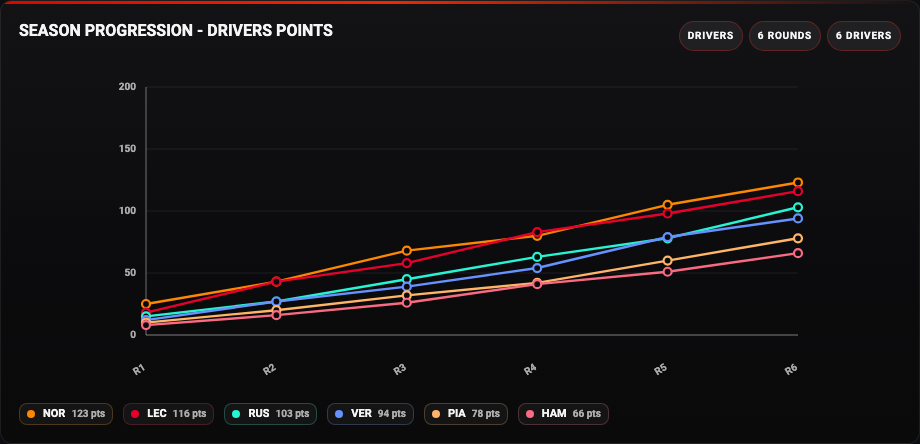
See how championship points accumulated across the season. Switch between drivers and constructors, and hide individual lines to focus on the title battle.
Availability
Published points. Enable Driver Points Progression or Constructor Points Progression. Current Season adds future rounds to the axis, and Driver List adds driver images. The chart uses published points and needs neither a live session nor F1TV Auth.
Add the card
- Open your dashboard, select Edit dashboard, then Add card.
- Search for F1 and select the Season Progression card.
- Choose Drivers or Constructors, then select the matching progression entity. Keep the legend at the bottom for a wide dashboard or move it to one side when that is easier to read.
- Select Save.
If the card is missing from the picker, follow Card installation. With more than one F1 Sensor entry, use the sources from the same entry; see Entity selection.
Minimal YAML
Use this in a manual dashboard card. Replace any entity ID with the one in your installation if it differs.
type: custom:f1-season-progression-card
mode: drivers
entity: sensor.f1_driver_points_progression
theme_mode: auto
For constructors, use the matching mode and entity:
type: custom:f1-season-progression-card
mode: constructors
entity: sensor.f1_constructor_points_progression
theme_mode: auto
Use the card
Select a name in the legend to hide or show its line. Hover over or focus a point for the race, round and points. Future rounds can remain on the axis before points have been published. Add separate cards if you want drivers and constructors visible together.
Configuration
Data sources
The defaults below are the card’s fallback values. Automatic discovery connects standard sources to the selected integration entry, including renamed entity IDs. See Entity selection.
| Option | Default | Description |
|---|---|---|
entity | Mode-specific | Primary data source for this card. Select the matching entity from your F1 Sensor entry. |
calendar_entity | sensor.f1_current_season | Current Season schedule for future rounds. Select the entity from your F1 Sensor entry. |
driver_list_entity | sensor.f1_driver_list | Driver List for chart labels and driver images. Select the entity from your F1 Sensor entry. |
Display and behavior
| Option | Default | Description |
|---|---|---|
mode | drivers | Use drivers or constructors |
theme_mode | auto | dark, light or auto; auto follows Home Assistant. See Appearance. |
title | Mode-specific | Card title |
show_header | true | Show the card header |
show_legend | true | Show the legend |
legend_position | bottom | Place the legend at bottom, left, or right |
show_legend_points | true | Show latest points in the legend |
show_full_name | false | Show full names instead of compact labels |
show_points | true | Show point markers on the chart |
show_round_labels | true | Show round labels on the x-axis |
show_future_rounds | true | Keep future calendar rounds visible before points are available |
top_limit | 0 | Limit visible entries to the top N. 0 shows all |
chart_height | 320 | Chart height in pixels, from 240 to 520. |
font_style | wide | wide, balanced or system. See Typography. |
All bundled cards also support f1_entry_id and card actions. Home Assistant layout settings remain available in the dashboard editor.
When data is missing
No progression data can be normal before points have been published for the season. Check that Mode matches the selected entity. A constructor sensor in a driver-mode card is not the right source pairing.
For an Entity not found message, check the selection in Data Sources and confirm that the entity is enabled in F1 Sensor. For a missing card type or an old interface after an update, use the card loading checks.