Track Map
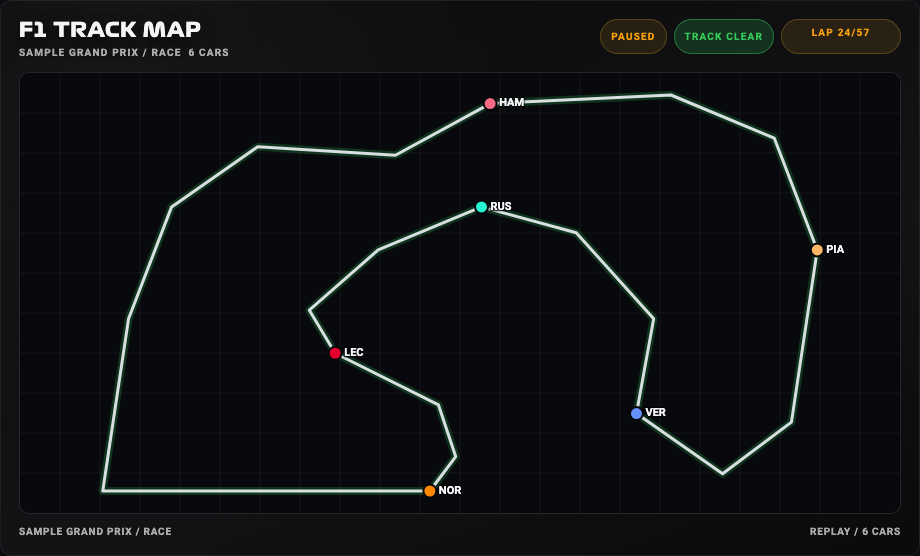
Watch driver markers move around the circuit with lap and track-status context. Use the map beside timing cards to relate gaps and incidents to a position on track.
Availability
F1TV live / Replay. The card connects directly to an F1 Sensor entry with usable map geometry and car positions. Live positions require optional F1TV Auth. Replay positions are available only when the loaded archive contains them. Race Lap Count, Driver Positions and Track Status add optional context.
Add the card
- Open your dashboard, select Edit dashboard, then Add card.
- Search for F1 and select the Track Map card.
- Keep the entry and context sources on Auto for a single-entry installation. Choose the correct integration entry if you have several. Start with automatic layout and TLA driver labels.
- Select Save.
If the card is missing from the picker, follow Card installation. With more than one F1 Sensor entry, use the sources from the same entry; see Entity selection.
Minimal YAML
Use this in a manual dashboard card. Replace any entity ID with the one in your installation if it differs.
type: custom:f1-track-map-card
entry_id: auto
theme_mode: auto
Use the card
Live map updates follow the configured Live Delay so they can match your broadcast. Replay follows the loaded session’s playback position. Label mode, line coloring and layout affect presentation; they do not add missing position data.
Configuration
Data sources
The defaults below are the card’s fallback values. Automatic discovery connects standard sources to the selected integration entry, including renamed entity IDs. See Entity selection.
| Option | Default | Description |
|---|---|---|
entry_id | auto | Integration entry for this card. Use auto with one entry or the intended entry ID when you have several. |
lap_count_entity | auto | Race Lap Count for completed and total laps. Select the entity from your F1 Sensor entry. |
track_status_entity | auto | Track Status for flags and race-neutralization context. Select the entity from your F1 Sensor entry. |
driver_positions_entity | auto | Optional Driver Positions source for driver context. Use auto to discover it; an empty value omits this context. |
no_spoiler_entity | switch.f1_no_spoiler_mode | Entity whose on state enables spoiler protection. See No Spoiler Mode. |
Display and behavior
| Option | Default | Description |
|---|---|---|
theme_mode | dark | dark, light or auto; auto follows Home Assistant. See Appearance. |
title | F1 Track Map | Card title |
throttle_ms | 100 | Minimum spacing between map updates, from 0 to 5000 milliseconds. This changes card updates, not the integration polling interval. |
interpolation_ms | auto | auto or 0–5000 milliseconds for smoothing driver-marker movement. |
invert_y | true | Invert the Y axis for the map projection |
show_header | true | Show the card header |
show_footer | true | Show source and status details at the bottom |
show_session_info | true | Show meeting and session text |
show_driver_count | true | Show the number of drivers currently displayed |
driver_label_mode | tla | tla, number or off for driver-marker labels. |
show_lap_progress | true | Show lap progress when a lap count entity is available |
show_track_status | true | Show track status context when available |
track_status_line_mode | accent | Use accent, full, or off for track status line coloring |
layout_mode | auto | auto, compact or full. Automatic layout responds to available card space. |
show_labels | true | Legacy label toggle. false maps to label mode off when driver_label_mode is not set. Prefer driver_label_mode for new cards. |
font_style | wide | wide, balanced or system. See Typography. |
All bundled cards also support f1_entry_id and card actions. Home Assistant layout settings remain available in the dashboard editor.
When data is missing
Waiting, stale data and missing geometry describe different source conditions. Check the status shown in the card, then follow the Track Map troubleshooting guide. A replay with no archived positions cannot produce moving markers, and public live timing alone does not supply them.
For an Entity not found message, check the selection in Data Sources and confirm that the entity is enabled in F1 Sensor. For a missing card type or an old interface after an update, use the card loading checks.