Tyre Statistics
Compare tyre compounds, stint history and the best lap times set on each compound. This card helps you see tyre usage across the field rather than one driver at a time.
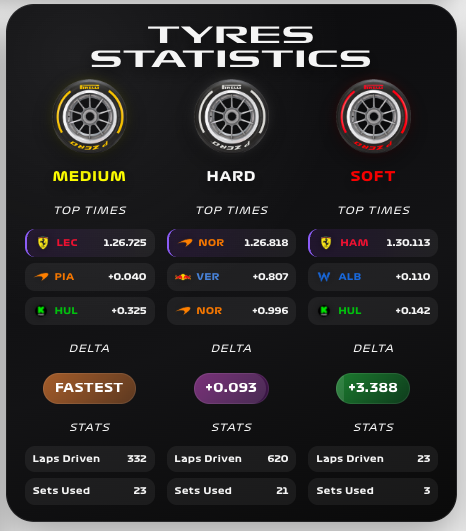
Availability
Public live / Replay. Enable Tyre Statistics and Driver List. Public live timing supplies tyre and lap context, and Replay Mode can show the corresponding archived data. Compound summaries need enough completed laps to become useful.
Add the card
- Open your dashboard, select Edit dashboard, then Add card.
- Search for F1 and select the Tyre Statistics card.
- Select Tyre Statistics under Data Sources and confirm Driver List. Keep best times and compound statistics visible initially; hide either section for a smaller dashboard.
- Select Save.
If the card is missing from the picker, follow Card installation. With more than one F1 Sensor entry, use the sources from the same entry; see Entity selection.
Minimal YAML
Use this in a manual dashboard card. Replace any entity ID with the one in your installation if it differs.
type: custom:f1-sensor-live-data-card
entity: sensor.f1_tyre_statistics
theme_mode: auto
Use the card
The compound sections combine stint and timing information. Use max_best_times to control how many fastest examples appear per compound. The optional compounds setting chooses the base compounds; intermediate or wet tyres with data can be included automatically. The card selects up to three compound sections.
Configuration
Data sources
The defaults below are the card’s fallback values. Automatic discovery connects standard sources to the selected integration entry, including renamed entity IDs. See Entity selection.
| Option | Default | Description |
|---|---|---|
drivers_entity | sensor.f1_driver_list | Driver List for names, teams and driver detail. Select the entity from your F1 Sensor entry. |
entity | sensor.f1_tyre_statistics | Primary data source for this card. Select the matching entity from your F1 Sensor entry. |
no_spoiler_entity | switch.f1_no_spoiler_mode | Entity whose on state enables spoiler protection. See No Spoiler Mode. |
Display and behavior
| Option | Default | Description |
|---|---|---|
theme_mode | dark | dark, light or auto; auto follows Home Assistant. See Appearance. |
title | Tyres Statistics | Card title |
show_header | true | Show the card header |
show_best_times | true | Show best lap times per compound |
show_stats | true | Show compound usage statistics |
show_delta | true | Show delta values |
show_tyre_image | true | Show tyre compound images |
show_compound_name | true | Show compound name |
show_full_name | false | Show full driver names |
show_team_logo | false | Show team logo |
team_logo_style | color | color or white for team logos. |
max_best_times | 3 | Maximum number of best times to show |
compounds | SOFT, MEDIUM, HARD | List or comma-separated compound names used as the base selection. Wet-weather compounds with data can be added automatically; up to three sections are displayed. |
font_style | wide | wide, balanced or system. See Typography. |
All bundled cards also support f1_entry_id and card actions. Home Assistant layout settings remain available in the dashboard editor.
When data is missing
Empty compound statistics at the start of a session are normal. Drivers need to complete suitable laps before best times appear. If all data is absent, check Tyre Statistics and Driver List before changing display settings.
For an Entity not found message, check the selection in Data Sources and confirm that the entity is enabled in F1 Sensor. For a missing card type or an old interface after an update, use the card loading checks.