Weekend Hub
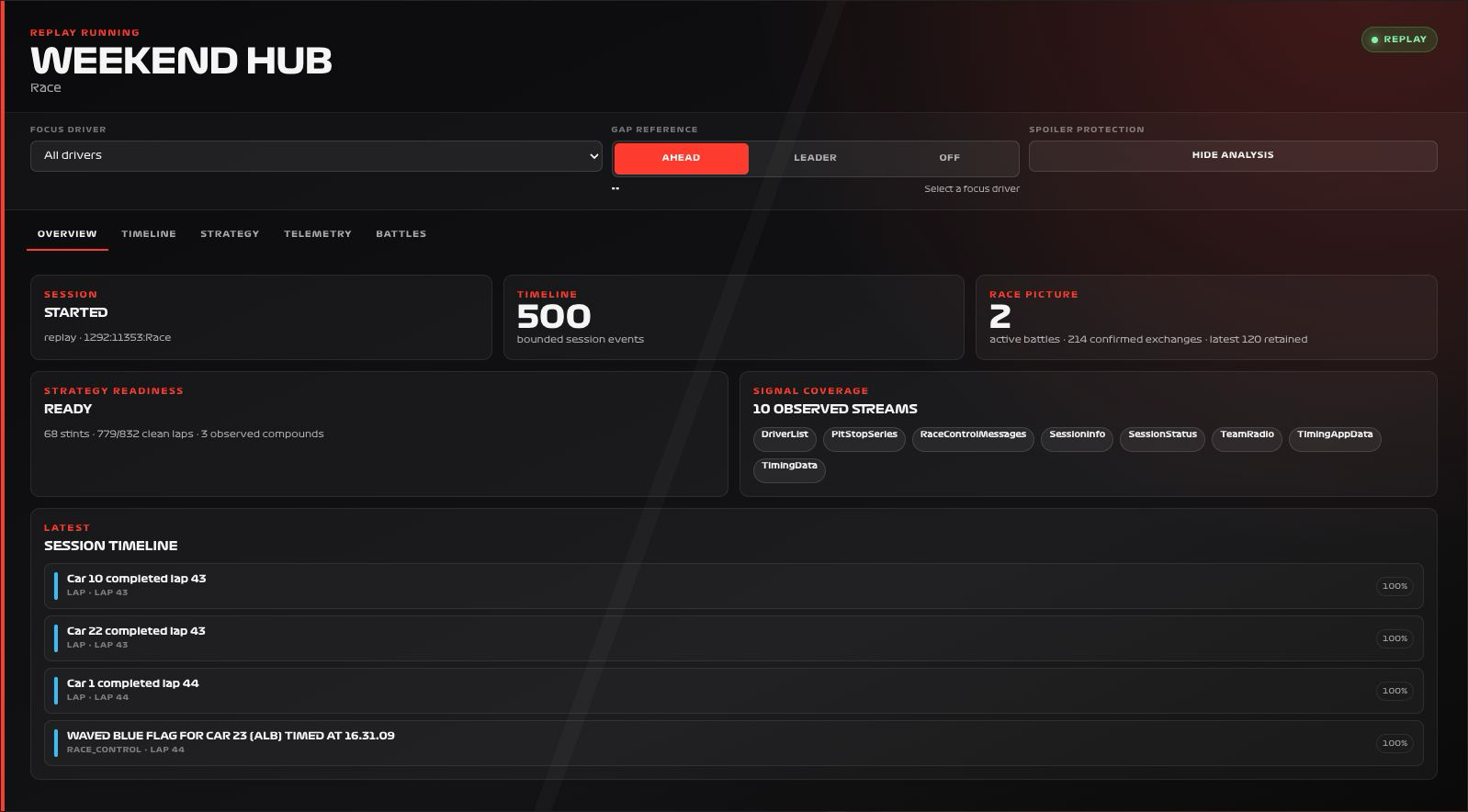
Follow a race weekend in one place, from the session overview to strategy, battles and replay telemetry. Use Weekend Hub when you want several views of the same session without building a separate dashboard for each.
Availability
Live / Replay. Enable live data and the timing features you want to use in F1 Sensor. The card connects to the integration directly; it does not need a primary sensor. Public timing supplies basic session context. Individual analysis views depend on available laps and timing data; telemetry comparison requires a loaded replay with the selected laps. Optional F1TV Auth can add live data when the source provides it.
Add the card
- Open your dashboard, select Edit dashboard, then Add card.
- Search for F1 and select the Weekend Hub card.
- Choose Overview as the default view for a first dashboard. Keep the context controls visible to select a focus driver, gap reference and spoiler protection. With multiple integration entries, select the intended entry instead of leaving
entry_idasauto. - Select Save.
If the card is missing from the picker, follow Card installation. With more than one F1 Sensor entry, use the sources from the same entry; see Entity selection.
Minimal YAML
Use this in a manual dashboard card. Replace any entity ID with the one in your installation if it differs.
type: custom:f1-weekend-hub-card
entry_id: auto
theme_mode: auto
no_spoiler_entity: switch.f1_no_spoiler_mode
This example connects spoiler protection to the integration switch. Turn that switch off in Home Assistant when you are ready to reveal results; the card does not toggle a configured switch. See spoiler controls for the optional helper behavior.
Use the card
The five tabs answer different questions:
| View | Use it to |
|---|---|
| Overview | Check session status, analysis readiness, active battles and recent events. |
| Timeline | Follow session changes, Race Control, laps, weather, pits, radio and analysis events in order. |
| Strategy | Compare clean-lap pace, degradation, compounds, teammate pace and pit-cycle outcomes with the stated confidence. |
| Telemetry | Compare speed, throttle, brake, gear and time delta for up to four explicitly selected replay laps. |
| Battles | Distinguish likely on-track overtakes from position exchanges associated with pits, penalties, lapping or track status. |
Supported cards share the focus driver, gap reference and spoiler selection. For example, Driver Lap Times follows the selected gap reference and highlights the same driver.
Telemetry is available only for selected laps in the loaded replay. Corner annotations are not currently available. Follow the analysis walkthrough for clean-lap interpretation, battle confidence and the step-by-step telemetry comparison.
Configuration
Data sources
The defaults below are the card’s fallback values. Automatic discovery connects standard sources to the selected integration entry, including renamed entity IDs. See Entity selection.
| Option | Default | Description |
|---|---|---|
entry_id | auto | Integration entry for this card. Use auto with one entry or the intended entry ID when you have several. |
no_spoiler_entity | input_boolean.f1_no_spoiler_mode | Entity whose on state enables spoiler protection. See No Spoiler Mode. |
Display and behavior
| Option | Default | Description |
|---|---|---|
title | Weekend Hub | Card title |
theme_mode | dark | dark, light or auto; auto follows Home Assistant. See Appearance. |
font_style | wide | wide, balanced or system. See Typography. |
default_view | overview | Initial view: overview, timeline, strategy, telemetry, or battles |
show_context | true | Show the synchronized driver, gap, and spoiler controls |
throttle_ms | 500 | Minimum interval between Weekend Hub updates, from 100 to 5000 ms |
All bundled cards also support f1_entry_id and card actions. Home Assistant layout settings remain available in the dashboard editor.
When data is missing
A view can remain empty while there are too few clean laps, no loaded replay, or insufficient data for that comparison. Read the message in that view before changing your configuration. Missing analysis is not a reason to disable spoiler protection or reconnect an otherwise working integration.
For an Entity not found message, check the selection in Data Sources and confirm that the entity is enabled in F1 Sensor. For a missing card type or an old interface after an update, use the card loading checks.