Analyse a Formula 1 session
Combine analysis modules in the F1 Sensor card to move from a session overview to the events, pace and battles behind it. The modules can share the same session, driver and team focus.
- Connect
Follow a live session or load an archived replay.
- Focus
Choose a driver, team or gap reference.
- Explore
Read the timeline, strategy, battles or recorded telemetry.
- Verify
Use Race Control and published results for official outcomes.
Build an analysis card
- Add an F1 Sensor card with Build your own, or edit an existing card.
- Add Overview for session and track status.
- Add the analysis modules that answer your questions: Session timeline, Strategy analysis, Battles and position changes, Lap history chart, Track map or Replay telemetry.
- Add Race Control for official messages and Results for published classifications.
- Under Layout and shared focus, choose the source and an optional driver or team.
For live use, enable the relevant timing features in the F1 Sensor integration. For recorded use, add Replay, load a session and start playback so analysis can receive its timing.
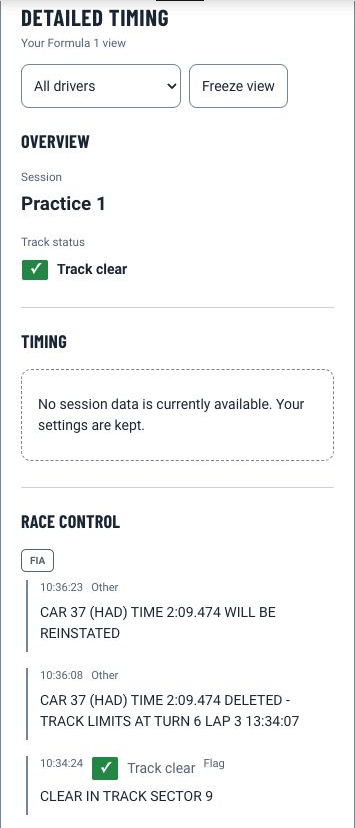
Public timing supplies session context. Optional F1TV Auth can add live streams, while replay depends on the data published in that session's archive. Replay telemetry needs a loaded replay with usable samples for the selected laps.
Read the session timeline
Session timeline combines observed session, track-status, Race Control, investigation, lap, pit, weather, radio, position, battle and classification events. Filter categories, search text, choose order and limit the number of events.
An analysis event is an interpretation of observed timing. Its evidence score is not the same as an official Race Control decision. Missing radio, pit or weather data means those events may be absent.
Understand strategy estimates
Strategy analysis can show recorded stints, compound comparisons, teammate pace, estimated compound crossovers and observed pit-cycle outcomes. The module separates recorded values from estimates and includes evidence or sample counts where available.
Strategy analysis excludes laps that would distort a pace comparison, including pit-lane laps, incomplete samples and laps affected by traffic or interruptions when the source identifies them. It can therefore wait for clean completed laps even after timing has started.
Use the module's content, compound, evidence-score and clean-lap filters to narrow the comparison. A lower median lap time indicates quicker recorded pace; it does not by itself prove the better race strategy.
Understand battles and position changes
Battles and position changes shows current battles, battle history or detected position exchanges. Use the driver or team focus to narrow the view and filter by evidence score.
A timing-position change alone does not prove an on-track overtake. Pit stops, penalties, lapping and track status can also change the order. Read the supporting signals and use Race Control or Results before treating an important incident or classification as official.
Compare replay laps
Replay telemetry compares up to four selected driver/lap pairs from the loaded replay. It can show recorded speed traces and a data table for the same samples.
Use the replay session selector first, then choose only laps that exist in the telemetry catalogue. Live telemetry comparison and inferred corner annotations are not available. An archive classification does not imply that telemetry or complete sector data exists.
Choose the right module after a session
| Question | Module |
|---|---|
| What was the published classification? | Results or Historical archive |
| How did positions or lap times change? | Lap history chart or Historical archive |
| How has the championship developed? | Season progression |
| What happened during a recorded session? | Replay with Session timeline, Strategy analysis or Battles and position changes |
| What did officials publish? | Race Control or FIA documents |
Classification, lap progression, analysis and telemetry have separate coverage. A published result does not guarantee a lap chart or replay telemetry.
Spoilers and empty modules
Keep No Spoiler Mode active until you want to reveal results. The card's local spoiler choice can add hiding but cannot override integration-wide protection.
An empty module can mean no matching focused events, too few clean laps, a replay without the required samples or a source that has not published the data. Use the module's explanation to choose the next check. For a connection error, verify the selected integration and resource using card loading checks.