Upgrading to automatic card data
After updating, F1 Sensor starts normally with your existing sensor choices, settings and authentication. The modular F1 Sensor card gets the data its modules need automatically. You do not need to confirm an upgrade choice or select card data.
Read the information notification
A dismissible one-time notification explains automatic card data and links to the integration settings. Your integration continues collecting and updating normally while the message is visible.
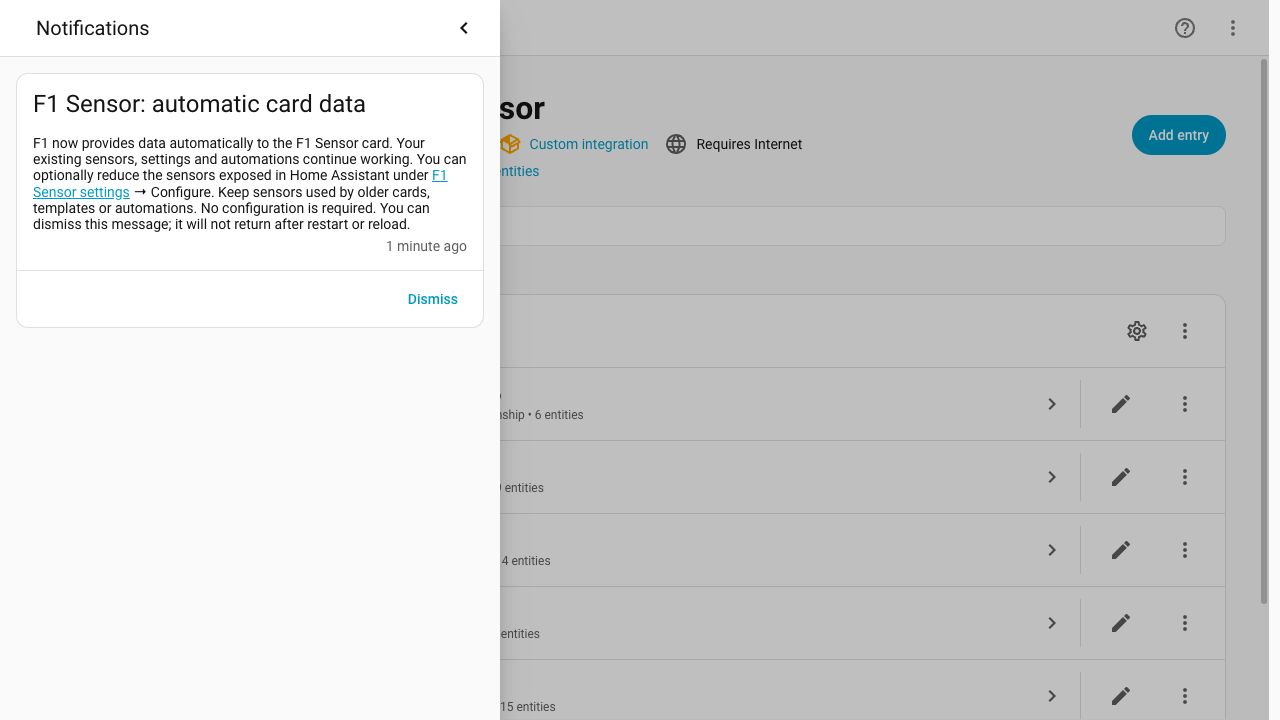
Dismissing it, including Dismiss all, leaves your configuration unchanged. The message does not return after 24 hours, reload or restart. New installations confirm their ordinary setup settings and do not receive this upgrade notification.
Optionally reduce sensors
- Open Settings → Devices & services → F1 Sensor.
- Select your installation and choose Configure.
- Adjust Enabled sensors if you want fewer entities in Home Assistant.
- Review and confirm any removed sensors.
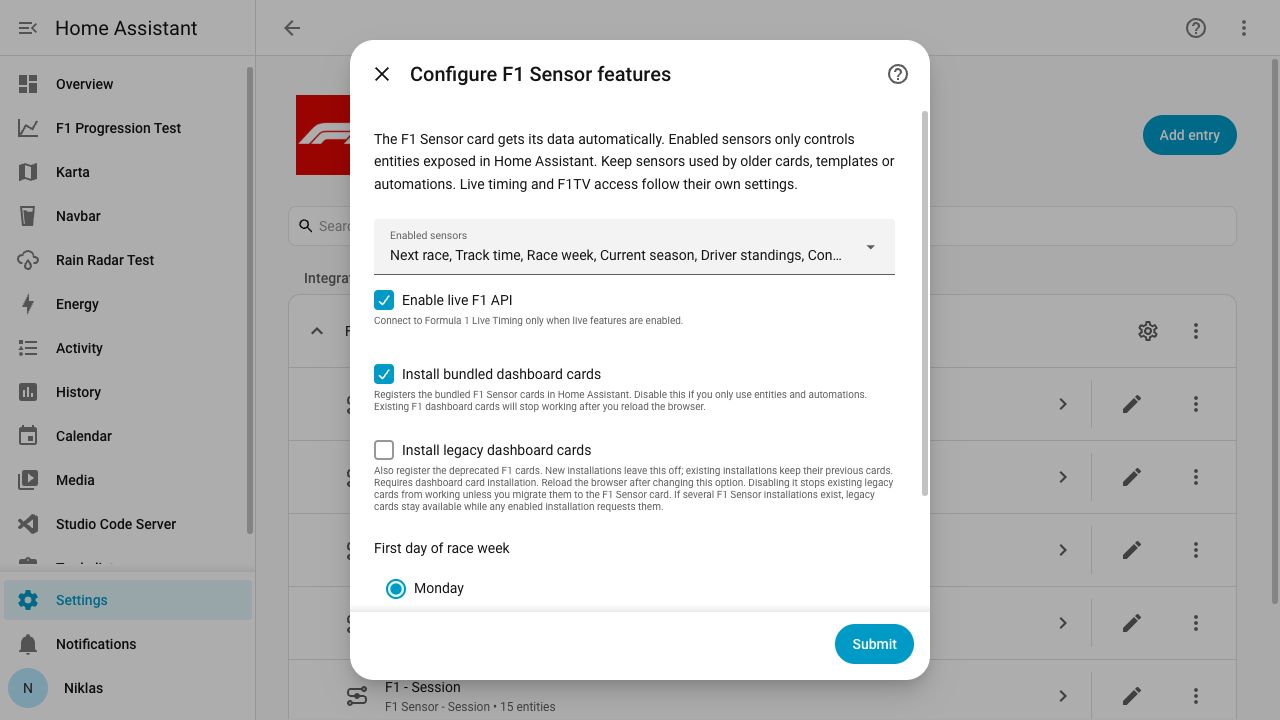
Images show a Home Assistant development installation.
Keep sensors used by templates, automations, standard cards and older F1 cards. Removing them can stop those consumers from working. The modular card can continue reading its data directly.
Normal Home Assistant entity disabling preserves registry metadata. Removing a sensor through the integration selection can remove its registry entry; recreating it may change custom names or entity IDs. See Automatic card data and optional sensors.
Existing access and protection
Automatic card data does not enable live timing or authenticated access. Your live settings, F1TV access, No Spoiler Mode, Live Delay and replay rules continue to apply. Collection follows the existing session windows.