Developer mode
Developer mode plays a local recording of live timing data through F1 Sensor. Use it to reproduce and test integration behavior with a known data sequence, not to watch a historical session alongside a broadcast.
Developer mode is intended for maintainers and contributors. The controls are hidden unless the installed build explicitly enables the developer interface.
Most users should use Replay Mode instead.
This guide calls the feature Developer mode. In the Operation mode field, select the value named Development.
When to use Developer mode
Use Developer mode when you need to:
- Reproduce a bug from a specific recorded live session
- Test dashboards, entities, events, or automations without waiting for a live F1 session
- Repeat the same timing sequence while validating a fix
- Test unusual or short-lived data changes preserved in a replay dump
- Work with a dump supplied by the maintainer for a specific test
Do not use Developer mode just because you want to watch a completed race later. Replay Mode is designed for that workflow and provides session selection, loading, playback controls, and seeking.
Benefits for development
Developer mode uses the local dump as the live timing source. This gives development tests several advantages:
- Repeatable input - Each run uses the same recorded messages in the same order.
- Preserved timing - Delays between recorded messages are replayed, which helps expose timing-dependent behavior.
- No active session required - You can test live entities at any time.
- Focused regression testing - A dump that contains a known problem can be reused after a fix.
- Local source data - The live timing test does not depend on Formula 1 currently publishing an active session.
The rest of the integration can still use network-based schedule and static data. Developer mode only replaces the live timing connection.
Developer mode vs Replay Mode
| Question | Replay Mode | Developer mode |
|---|---|---|
| Who should use it? | Anyone watching a completed session | Maintainers and contributors testing the integration |
| Where does data come from? | Formula 1's completed session archive | A local replay dump file |
| How does it start? | You select, load, and play a session | It starts when the integration loads in Developer mode |
| Can you pause or seek? | Yes, with replay controls and the replay media player | No Developer mode playback controls |
| Does it follow a TV replay? | Yes, this is the intended use | No, it is intended to reproduce recorded input |
| Does it preserve recorded timing? | It builds controlled playback from archived session streams | Yes, it uses the timing stored in the dump |
| Does it repeat automatically? | No, playback ends at the end of the selected session | Yes, the local dump starts again while Developer mode remains active |
| Is it available in normal releases? | Yes | Hidden unless the developer interface is enabled |
The F1 Replay Control card and media_player.f1_replay_player control normal Replay Mode. They do not pause, seek, or stop a local Developer mode dump.
Replay dump requirements
The replay dump must be a recorded live timing file that F1 Sensor can read.
- Use a dump created during local development or supplied by the maintainer.
- Store the file where the Home Assistant process can read it.
- Enter an absolute file path, including the file name.
- If Home Assistant runs in a container, the path must exist inside that container.
- Keep sensitive or private data out of committed test dumps.
A full recording can take several hours to replay because Developer mode preserves the recorded delay between messages. The dump commonly starts with a pre session phase before the session changes to live.
Enable Developer mode
Step 1 - Confirm the controls are available
- Install the developer build or local build specified by the maintainer.
- Open Settings.
- Go to Devices & services.
- Open F1 Sensor.
- Select Configure.
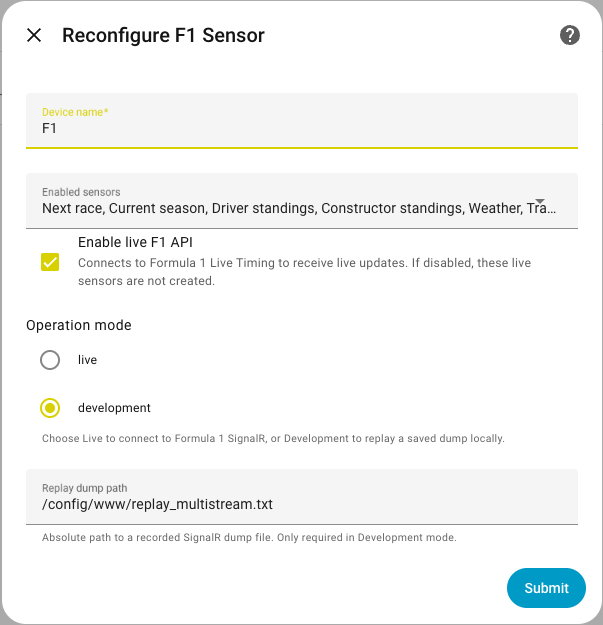
- Confirm that Operation mode and Replay dump path are shown.
If these fields are not shown, the installed build does not expose Developer mode.
Step 2 - Select the replay dump
- Set Operation mode to Development.
- Enter the absolute file path in Replay dump path.
- Submit the form.
Home Assistant validates that the path points to a file before saving the configuration. The integration then reloads and starts reading the dump automatically.
Step 3 - Verify the data source
Check the Home Assistant logs for:
Starting F1 Sensor in development replay mode
You can also download integration diagnostics and confirm that operation_mode is development.
While Developer mode is active, F1 Sensor does not use the normal public or F1TV-authenticated live timing connection. Return Operation mode to Live when you finish testing.
Return to Live mode
- Open Settings → Devices & services → F1 Sensor → Configure.
- Set Operation mode to Live.
- Submit the form.
The integration reloads, clears the configured dump path, and returns to normal live session handling.
Limitations
- Developer mode is hidden in builds that do not enable the developer interface.
- Playback starts automatically and does not provide pause, seek, or session selection.
- The dump repeats while Developer mode remains active.
- Available entities and data depend on the streams recorded in the dump.
- F1TV Auth is not used for live timing while Developer mode is active.
- A previously configured dump that is moved or deleted can cause startup to fall back to normal live timing.
- Automations and notifications can run each time matching events repeat.