Live Delay, Sync with TV
The live update delay lets you delay delivery of live messages so they better align with what you see on TV or streaming services.
This is especially useful for dashboards and automations, for example flashing lights on a red flag or reacting to safety car deployments, so they happen at the same moment you see them on screen.
Typical broadcast delays
Actual delays vary by provider, but these ranges are common:
• Broadcast TV (satellite, cable, terrestrial): ~5–10 seconds behind
• Streaming services: ~20–45 seconds behind, sometimes more
• Sports cable / OTT providers: ~45–60 seconds or more depending on provider
By setting the delay accordingly, Home Assistant can react in sync with the live pictures you are watching.
Option 1 - Manual delay adjustment
At its core, Live Delay is a single value, stored in number.f1_live_delay
Changing this value directly updates the Live Delay Controller and delays all live messages. This value represents how many seconds the live data stream should be delayed before it is exposed to sensors.
Everything else in the integration builds on top of this number.
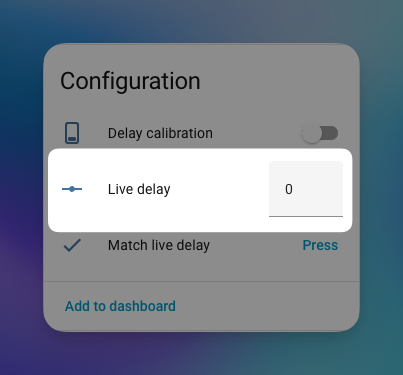
This method is simple and reliable. The guided calibration below is optional.
During the broadcast, they always show the moment the race clock flips to the start time, for example 15:00:00. If you look up an atomic clock online, you’ll have an exact reference. Watch the time when the broadcast clock hits the start. So when the broadcast clock shows 15:00:00 and the formation lap starts, the atomic clock reads 15:00:30. Then set a 30-second delay in the configuration.
Option 2 - Guided calibration
The guided workflow helps you measure the delay automatically.
It uses two helper entities, switch.f1_delay_calibration and button.f1_match_live_delay
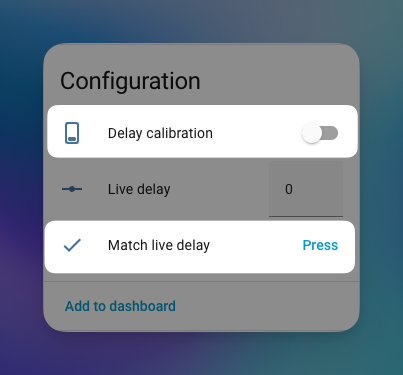
Step 1, Arm the calibration
Turn the switch switch.f1_delay_calibration on to start calibration mode
What happens next:
• If the session is not live yet, the integration waits
• When the session goes live, the timer starts automatically
• If the session is already live, timing starts immediately
Step 2 - Match the TV broadcast
When you see the session start on your TV, press the button.f1_match_live_delay and the elapsed time is measured and the result is written to
number.f1_live_delay
The integration listens to the session state from sensor.f1_session_status. The moment this sensor switches from pre to live, the session is considered started.
Practice & Qualifying
The session starts when the pit exit turns green. F1 TV usually shows a countdown to this moment.
Qualifying
Calibration is only needed for the start of Q1.
Race
The session starts when all five lights go out and the race begins.
This is not the formation lap.